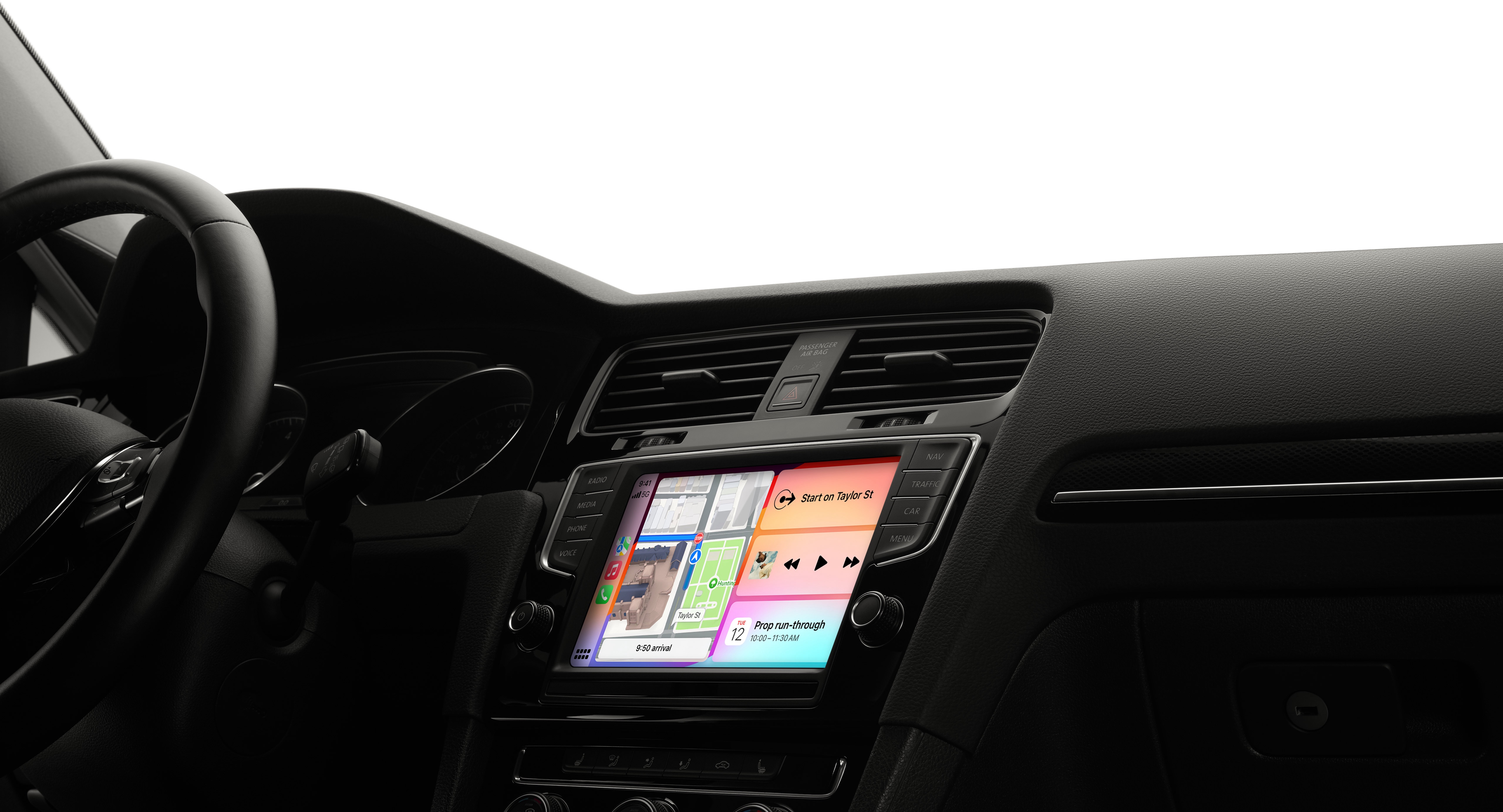
As a parent, hearing about children getting hurt is deeply saddening. Today, a friend shared a tragic story about a nightmare in Arizona: a father accidentally left his 2-year-old daughter inside a car for three hours on a 109°F day. This is a situation no parent would ever want to experience.
As a parent and a former Apple employee, I can’t pass up the chance to share my knowledge of the Apple ecosystem to help prevent such situations.
Though this article is mostly about how to create a Child Reminder on an iPhone, I have something for you, my Android-user friends.


Shortcut Download Link (An Automation setup is still required after downloading this shortcut)
Create a Child Reminder on iPhone using Apple CarPlay
- First, you need to create a Shortcut. This Shortcut is for the notification you will received with the reminder to check your car before leaving.
- Open the Shortcuts app, go to the Shortcuts tab, and press the plus icon (+).
- On the “Search Actions” section, search for “Show Notification” and select it.
- You will see “Show notification -> Hello World”, tap over the “Hello World” and rewrite it to “Check your car before you leave.”
- Tap on the shortcut name at the top and select “Rename”. Rename it to “Child Reminder”. You can also select “Choose Icon” and set a new icon and color to the Shortcut and the notification.
- Press Done.
- Now on your Shortcuts list you should see your new Shortcut titled “Child Reminder”.
- Lastly, long-press the shortcut tile in the “My Shortcut” list and select Details. If possible, enable “Show on Apple Watch” in this menu, and press Done.
- Now that you have created your Shortcut, it’s time to create an Automation
- On the Shortcuts app, go to the Automations tab, and press the plus icon (+).
- Search (or scroll down) “CarPlay”.
- Select “Disconnects” only, and “Run Immediately”. Leave “Notify When Run” off. Press Next.
- Press “My Shortcuts” and select the shortcut you just created. (Child Reminder)
Your Automation is ready, each time your iPhone gets disconnected from Apple CarPlay, you will receive this notification on your iPhone and Apple Watch.
Create a Child Reminder on iPhone using your Bluetooth
Not all cars comes with Apple CarPlay, but don’t fret. I got you covered.
- First, you need to create a Shortcut. This Shortcut is for the notification you will received with the reminder to check your car before leaving.
- Open the Shortcuts app, go to the Shortcuts tab, and press the plus icon (+).
- On the “Search Actions” section, search for “Show Notification” and select it.
- You will see “Show notification -> Hello World”, tap over the “Hello World” and rewrite it to “Check your car before you leave.”
- Tap on the shortcut name at the top and select “Rename”. Rename it to “Child Reminder”. You can also select “Choose Icon” and set a new icon and color to the Shortcut and the notification.
- Press Done.
- Now on your Shortcuts list you should see your new Shortcut titled “Child Reminder”.
- Lastly, long-press the shortcut tile in “My Shortcut” list and select Details. In this menu, enable “Show on Apple Watch”, if possible, and press Done.
- Now that you have created your Shortcut, it’s time to create an Automation
- On the Shortcuts app, go to the Automations tab, and press the plus icon (+).
- Search (or scroll down) “Bluetooth”.
- Under the “Device” list, choose your car Bluetooth connection.
- Select “Disconnects” only, and “Run Immediately”. Leave “Notify When Run” off. Press Next.
- Press “My Shortcuts” and select the shortcut you just created. (Child Reminder)
Your Automation is ready, each time your iPhone gets disconnected from your car’s Bluetooth, you will receive the notification on your iPhone and Apple Watch.
Create a Child Reminder on iPhone using Focus: Driving
If your car doesn’t have CarPlay nor Bluetooth, don’t worry. Here’s an option for you.
- First, you need to create a Shortcut. This Shortcut is for the notification you will received with the reminder to check your car before leaving.
- Open the Shortcuts app, go to the Shortcuts tab, and press the plus icon (+).
- On the “Search Actions” section, search for “Show Notification” and select it.
- You will see “Show notification -> Hello World”, tap over the “Hello World” and rewrite it to “Check your car before you leave.”
- Tap on the shortcut name at the top and select “Rename”. Rename it to “Child Reminder”. You can also select “Choose Icon” and set a new icon and color to the Shortcut and the notification.
- Press Done.
- Now on your Shortcuts list you should see your new Shortcut titled “Child Reminder”.
- Lastly, long-press the shortcut tile in “My Shortcut” list and select Details. In this menu, enable “Show on Apple Watch”, if possible, and press Done.
- Confirm you have Focus: Driving Mode enabled, if not do so by following these steps. For more information about Apple Focus: Use the Driving Focus on your iPhone to concentrate on the road
- On your iPhone, go to Settings > Focus > Driving
- Setup the People you wish to receive notifications from while driving, and your Auto-Reply options.
- Under “Turn On Automatically”, select While Driving; and under “Activate”, select “Automatically”.
- Now that you have created your Shortcut, it’s time to create an Automation
- On the Shortcuts app, go to the Automations tab, and press the plus icon (+).
- Search (or scroll down) “Driving”.
- Under “When”, select “When Turning Off” only, and “Run Immediately”. Leave “Notify When Run” off. Press Next.
- Press “My Shortcuts” and select the shortcut you just created. (Child Reminder)
Your Automation is ready, each time your iPhone detects you stopped driving, Focus: Driving will be disabled and you will receive the notification on your iPhone and Apple Watch.
Do you prefer Android as your daily driver?
I highly recommend using Waze as your turn-by-turn directions app, either if you use it directly on your phone with a windshield mount or via Android Auto.
Note: This also applies if you have Waze installed on your iPhone and use it as your turn-by-turn directions app. Keep in mind that the iPhone will only notify you if you set a route using Waze. Hence, the steps shared above are highly recommended.
- Open Waze app
- Go to Settings
- Select Reminders
- Enable “Child reminder”
Featured illustration: Apple Inc.
Leave a Reply